

Built-in dimensions
These are always available, on every request.Reserved dimensions
These two keys are always available for filtering and grouping, with consistent performance even when you have many distinct values.
Set them with
X-Toolken-Metadata-Environment and X-Toolken-Metadata-Session-Id. They appear in the dashboard once you start sending them.
Custom dimensions
Any safe key you send viaX-Toolken-Metadata or X-Toolken-Metadata-* becomes a dimension automatically. Keys must match ^_?[a-z][a-z0-9_]{0,63}$, with a 16384-byte (16 KB) total metadata limit and up to 64 keys per request. The reserved keys environment and session_id are set via their dedicated headers (X-Toolken-Metadata-Environment and X-Toolken-Metadata-Session-Id) and cannot be sent through X-Toolken-Metadata. Common examples:
There is no list to register from. Send a key once and it shows up in the group-by control immediately.
Per-key
X-Toolken-Metadata-* headers are server-to-server. A CORS preflight cannot allow a header prefix, so direct browser (client-side) requests must send attribution as JSON in the single X-Toolken-Metadata header instead.How grouping works
Pick a dimension in any dashboard view and the chart pivots to show one series per value. For example, grouping Cost byagent gives you one cost line per agent. Grouping Usage by customer_id gives you token consumption per customer.
You can group by any built-in or reserved dimension, or any metadata key you’ve sent, across all views: Cost, Usage, Performance, and Reliability.
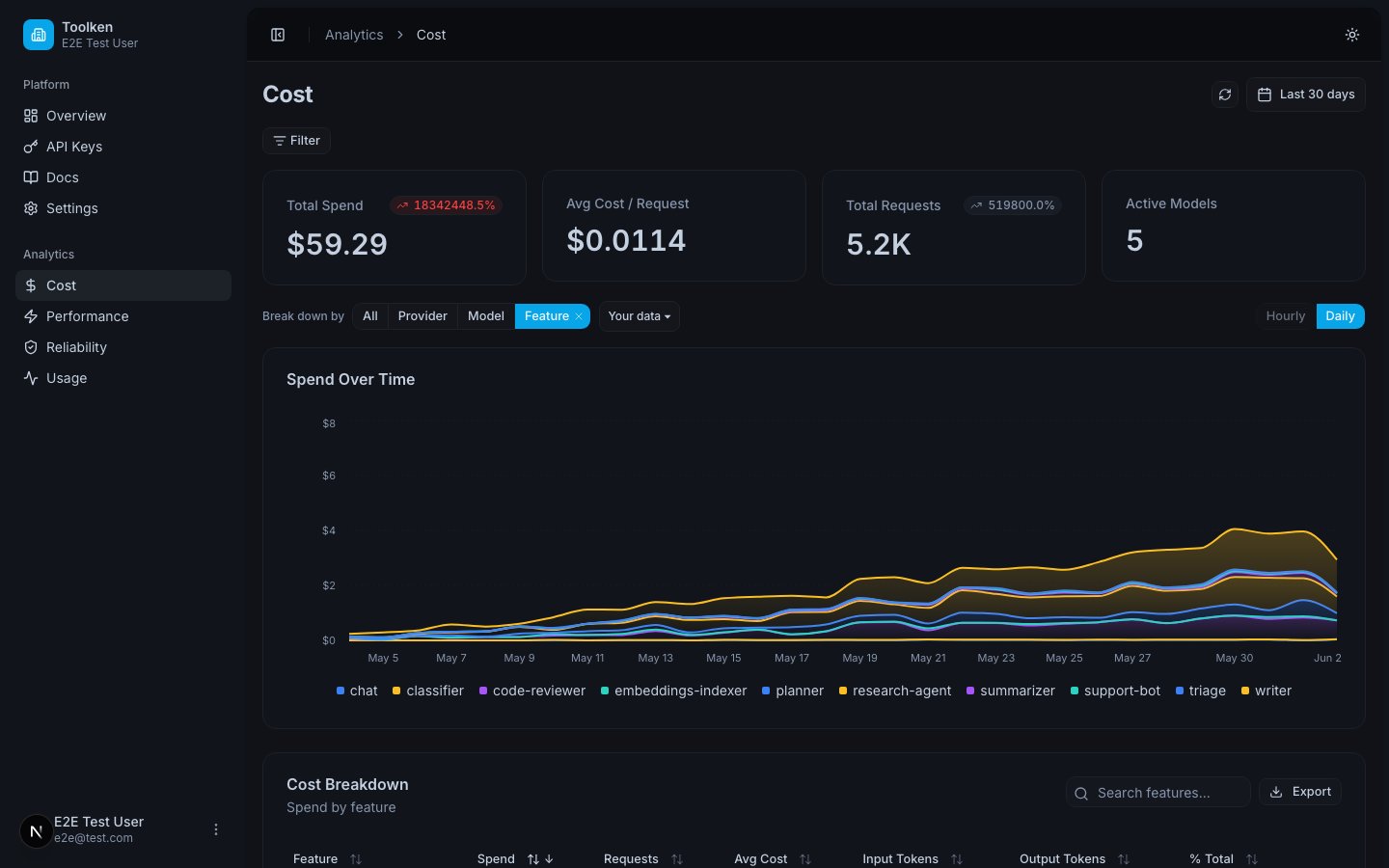
Cost grouped by agent, showing spend per agent
How filtering works
Filtering narrows a view to a subset of requests before the aggregation happens. Select one or more values for any dimension and the view shows only matching requests. Filters compose: filtering byagent = research-agent and environment = production shows cost for that agent in production only. Filters apply to every metric in the active view.
Period selector
Every view has a period selector. Available windows include Last 7 days, Last 30 days, and Last 90 days. The period applies to both charts and summary numbers.Requests with no tags
A request with no tags hasmodel and provider only. It shows up under those dimensions. Tags add extra dimensions on top. Nothing is lost.
Adding a dimension you haven’t sent yet
Send the header once and it appears in the dashboard. There’s no schema to define upfront. If you addX-Toolken-Metadata-Agent: batch-job to a new workflow today, that value starts showing in your Cost view immediately.
Next
Custom Properties
How to set the headers that create dimensions.
Dashboard
The views available once dimensions are set.